
Furniture Wishlist App Features for Couples
Every feature below is built around two people deciding together, not one person managing a list on their own, from independent voting to a link you can both use without either of you making an account. All of it is free, with no paid plan to unlock sharing or extra rooms.
One link, no accounts
Creating a list gives you a private web address straight away, no email, no password, and nothing to set up. Click Create your wishlist on the homepage and you're taken straight to your new list, no forms to fill in first.
That link is what gets you back in and what you share with your partner, so save it somewhere safe: there's no login to recover it with if it's lost.
Organise everything by room
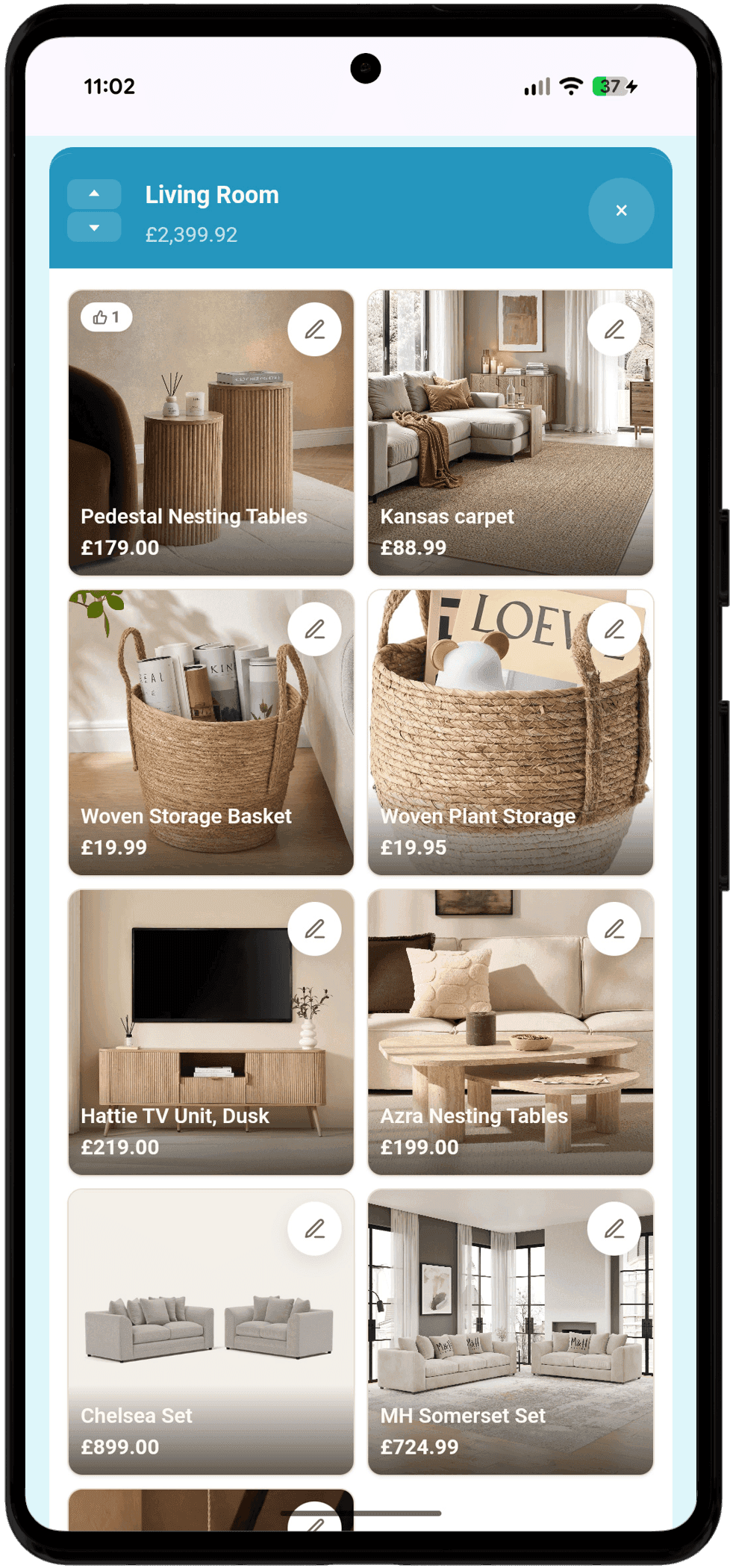
Each room keeps its own running total as you add to it.
Every list starts with a set of rooms that you can rename, add to, or delete at any time, so the list matches how your new home is actually laid out.
Click a room's name to rename it, or use + Add room at the end of the board to add another. The three-dot menu in a room's header moves it along the board or deletes it. If you're not sure what belongs where yet, the room-by-room furniture checklist is a good place to start.
Keep a checklist for each room
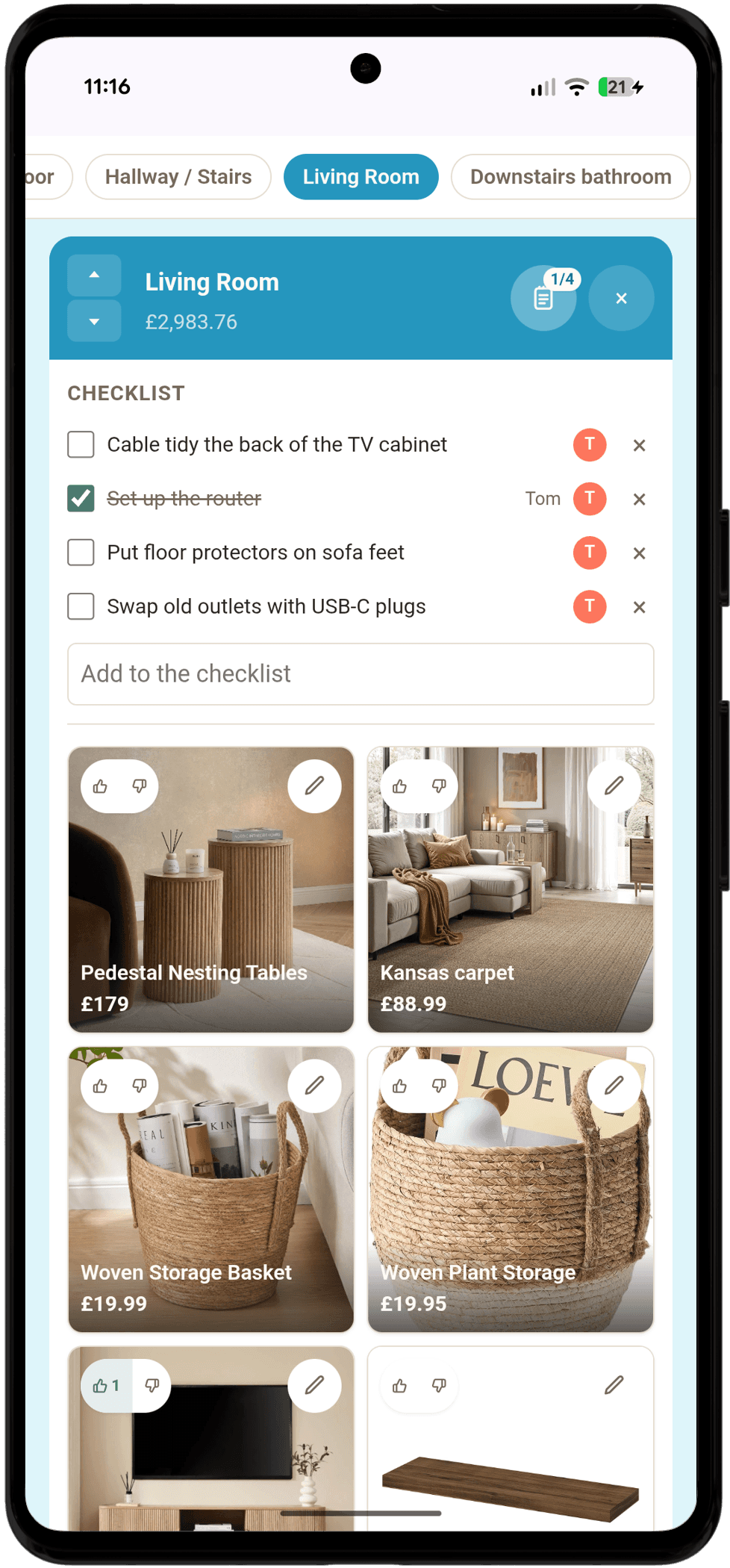
Checklist lines sit above the room's items and never count towards its total.
Not everything a room needs is a product yet. Tap the ticked list button in a room's header to open its checklist, and jot down measurements, jobs, or “we still need a rug” without adding a whole item for it.
Type a line and press Enter to add it, and the box stays ready for the next one. Tick lines off as you go, tap one to reword it, or tap its × to delete it. Each line shows who wrote it and who ticked it off, and the badge on the button shows how many are done without opening it.
Add everyone on the list
A brand new list asks for your names straight away, so votes and “Added by” read as real people from the very first item you add, not placeholders. Add anyone else, any time, from People.
Add items from any link
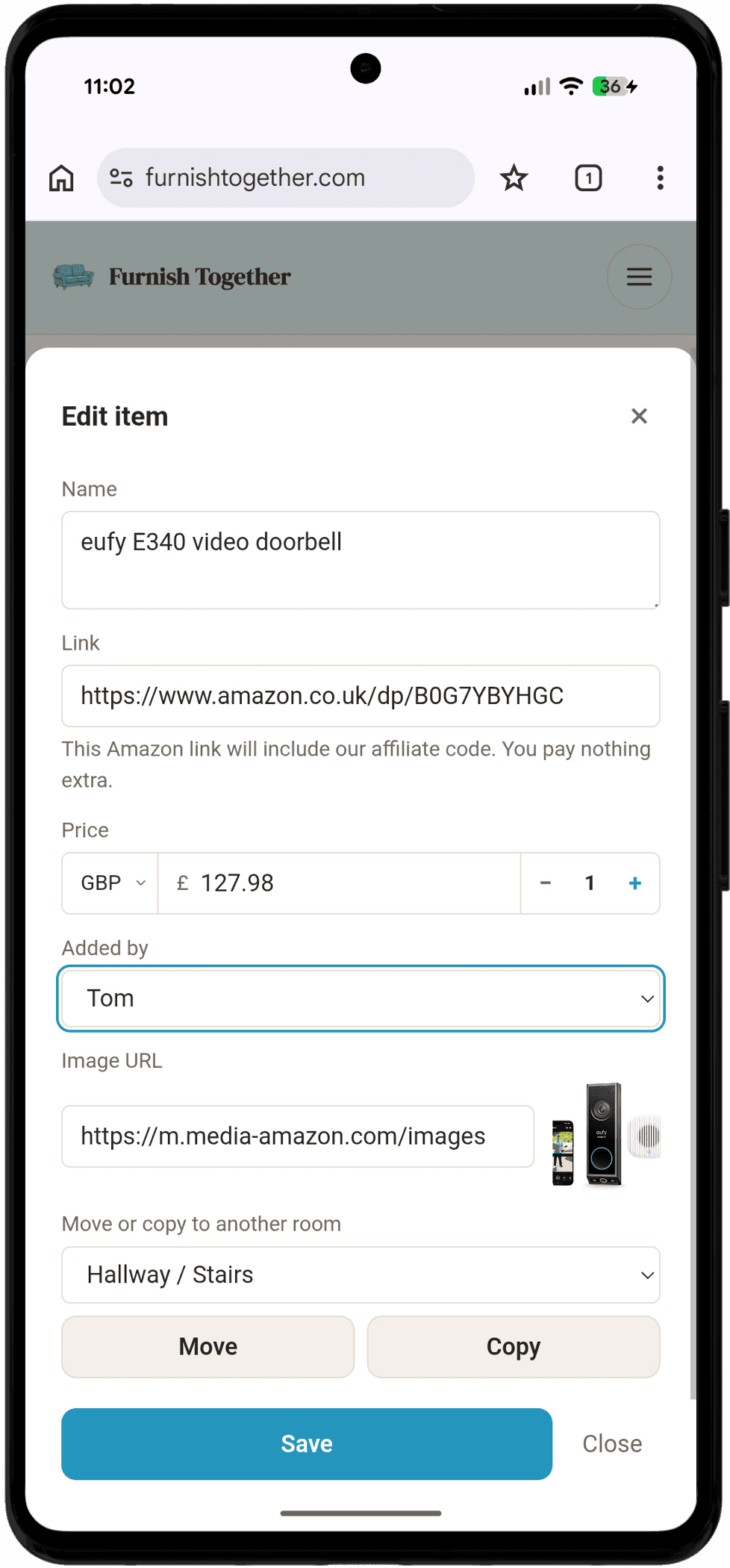
The same form lets you move or copy an item to a different room.
Tap the + in a room's header, or + Add at the bottom of the room, and paste a link from wherever you found the piece, Amazon, a furniture retailer, anywhere, into the Link field.
Furnish Together tries to pull the product name, image, and price from the page automatically, so you rarely have to type them in by hand; fill in anything it couldn't, then click Add item.
Vote on your furniture wishlist together
Every item gets a thumbs up or thumbs down from each partner on the list. Tap thumbs up or thumbs down on any item card: the first tap on a device asks who you are, and it's remembered from then on, so voting after that is a single tap.
Voting separately, rather than reacting out loud together, is what actually surfaces a real disagreement while it's still cheap to resolve. More on that in how to agree on furniture with your partner.
Track ordering and delivery
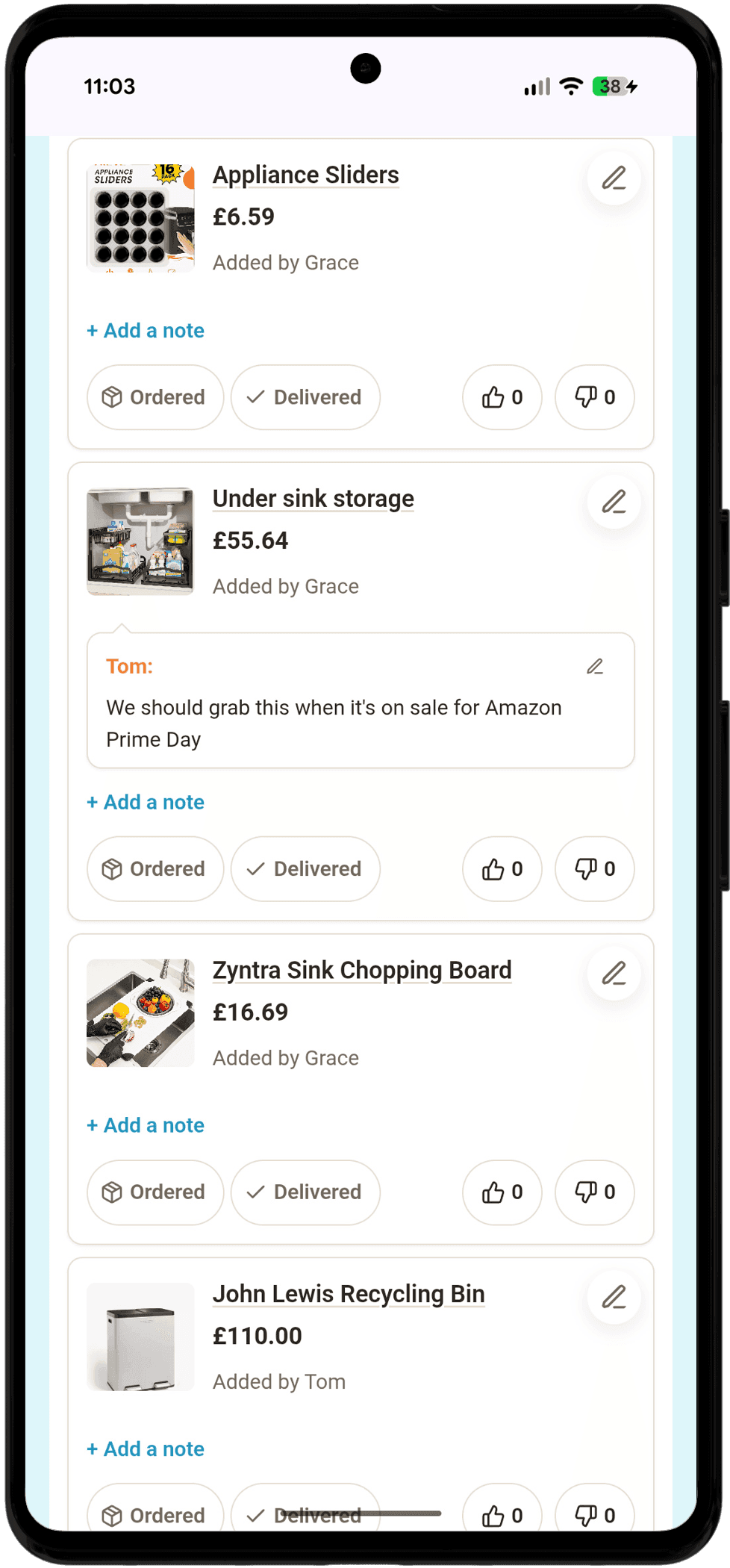
Notes can turn into a back-and-forth, like the reply on this item.
Once you've decided on something, use the Ordered and Delivered buttons right on the item card as its status changes. That keeps it obvious what's still to buy and what's already on its way, without digging back through old messages or order confirmation emails.
Once something's marked delivered, its card collapses down to just the name and sinks to the bottom of its room, so a finished list reads as a quiet, tidy checklist instead of a wall of duplicate cards, while still keeping every detail one tap away.
This is also the actual mechanism for avoiding duplicate furniture when merging two households: mark what's already sorted as delivered, and it reads as settled rather than still up for debate.
Jump straight to a room
Once your list has enough rooms that scrolling past all of them gets tedious on a phone, a small bar of room names appears as you scroll, so you can tap straight to any room instead of swiping past every one in between.
It also tracks where you actually are: whichever room's in view stays highlighted, so it doubles as a quick answer to “which room am I looking at” on a long list.
Find anything with search
Once a room fills up, type into the Search items box at the top of the list to filter by name across every room at once, so you don't have to scroll through the whole board to find one thing.
Sort, filter, and adjust the board
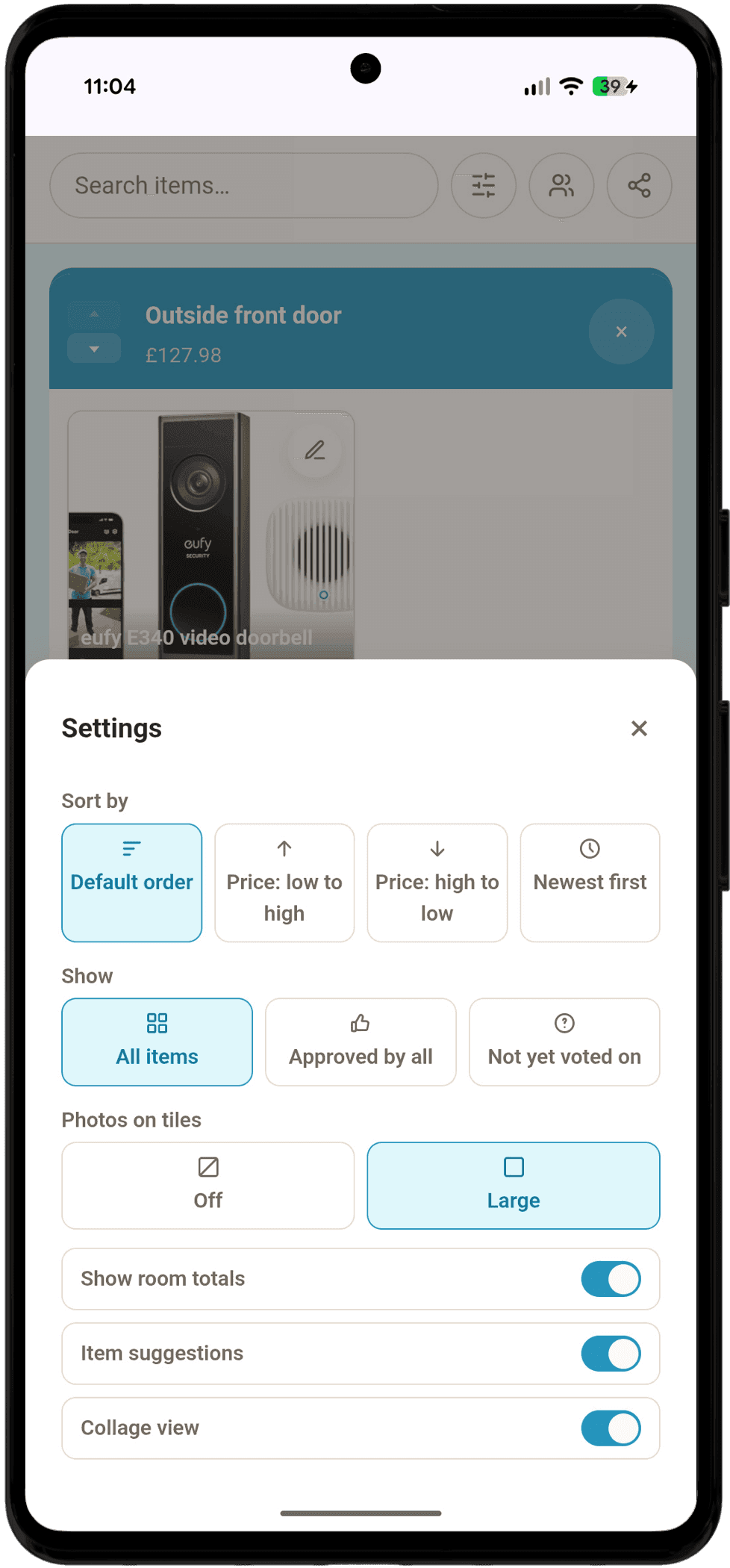
The same panel also toggles room totals, item suggestions, and collage view.
Items show newest first, so what you've just added sits at the top of its room. Open the Settings icon next to search to sort by price or oldest first instead (your choice is remembered on that device), or show only the ones everyone's voted up (or the ones nobody's weighed in on yet), without changing what's actually on the list.
The same menu lets you turn product photos on tiles off, or switch them between small and large, remembered on your device from then on.
Price things in your own currency
Each item's price can be set in GBP, USD or EUR, useful if one of you is shopping from a retailer that prices in a different currency.
Every price you add also feeds each room's running total, so you can see what you're actually committing to spend as you go. For realistic UK figures to compare against, see what furnishing a first flat actually costs.
Say how many you need
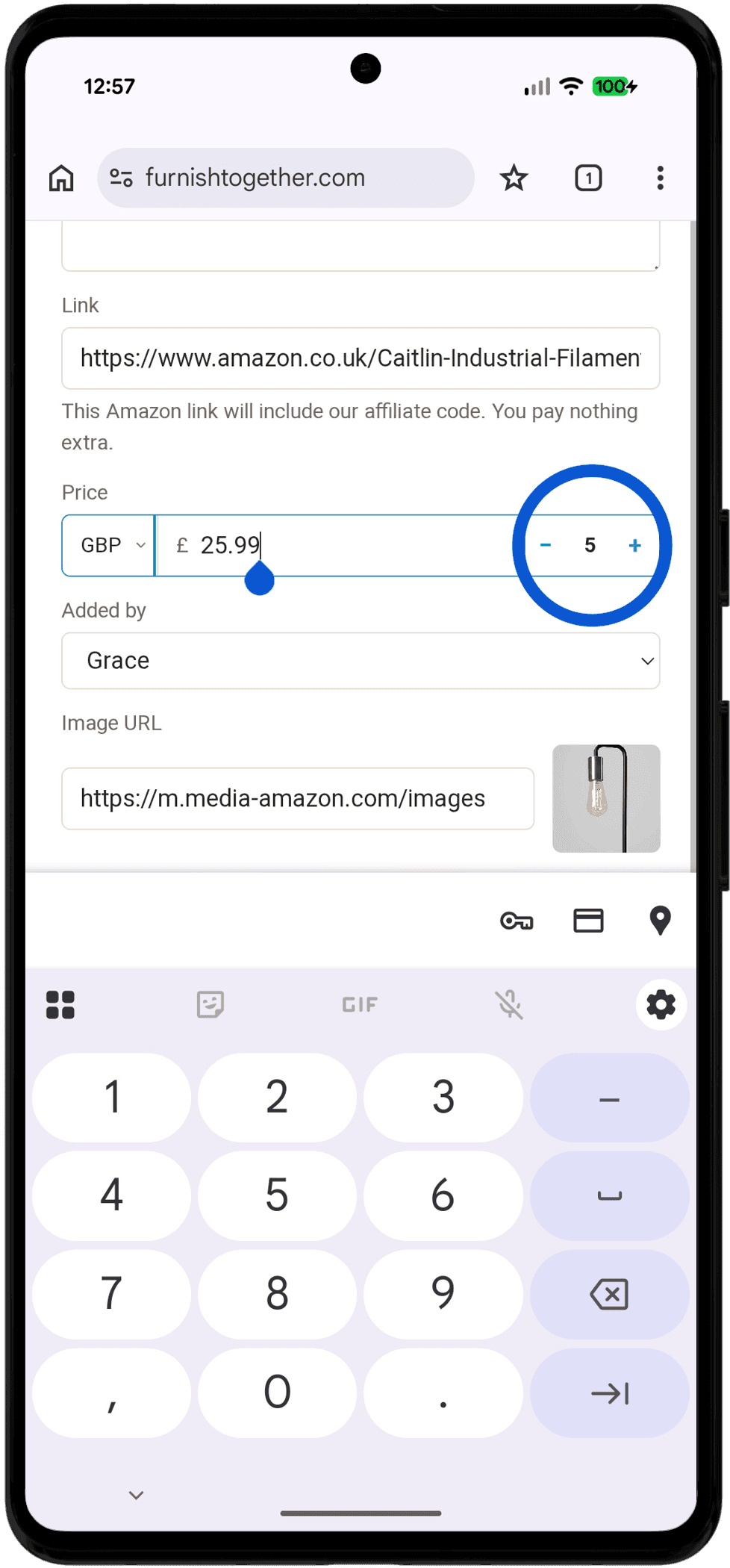
There's no upper limit, so a set of six dining chairs is as easy to log as a single lamp.
Want more than one of something? Use the − / + stepper next to the price, on the add or edit item form, to set a quantity.
The card then shows the total, four chairs at £80 each reads as £320, with the £80 each price kept alongside it, and room totals and price sorting both add up the total rather than just the per-item price.
See what's changed
The Share panel shows a List updated … note, so you can tell at a glance whether there's anything new since you last looked.
Know the moment something's added
If you and your partner both have the list open at the same time, say you're browsing from different rooms in the house, or one of you is out and about, a quick notification appears the moment the other person adds an item or a checklist line, naming who added it and which room it went into.
It's a live nudge rather than a history: it only shows up if you're already looking at the list right when it happens, so there's nothing to catch up on afterwards if you miss it.
Share the link however suits you
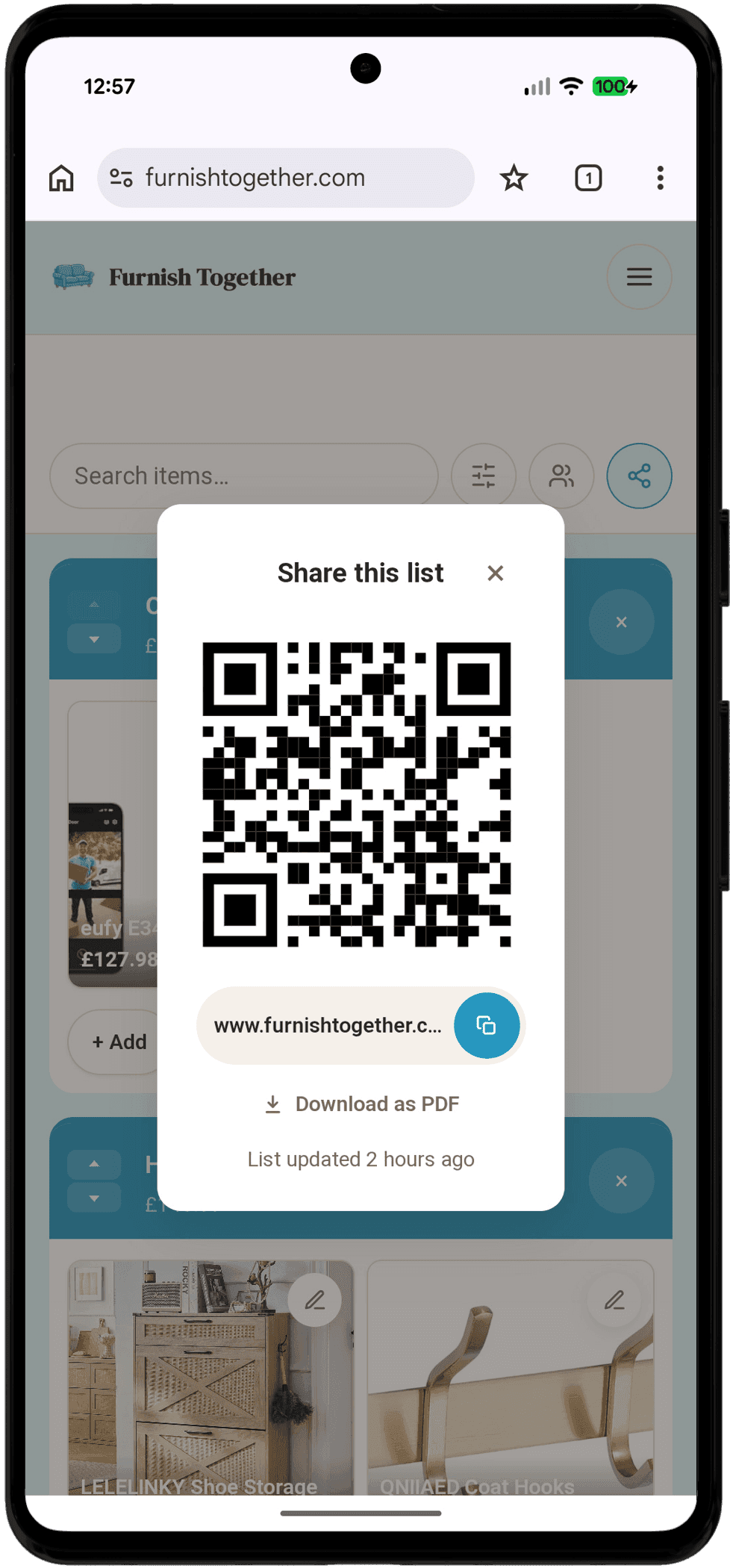
The same panel shows when the list was last updated, and links to the PDF download too.
The Share button at the top of every list opens a panel with the link itself, a one-tap Copy link button, and a QR code your partner can scan straight from their phone camera to open the list instantly.
Add it to your home screen
Furnish Together works straight from the browser, no app store needed, but you can still pin it to your home screen like an app. On iPhone, open the list in Safari, tap the Share icon, then Add to Home Screen. On Android, open it in Chrome, tap the menu, then Add to Home Screen.
Either way you get an icon that opens straight to your list, so it's one tap away instead of buried in a chat thread.
Download a printable checklist
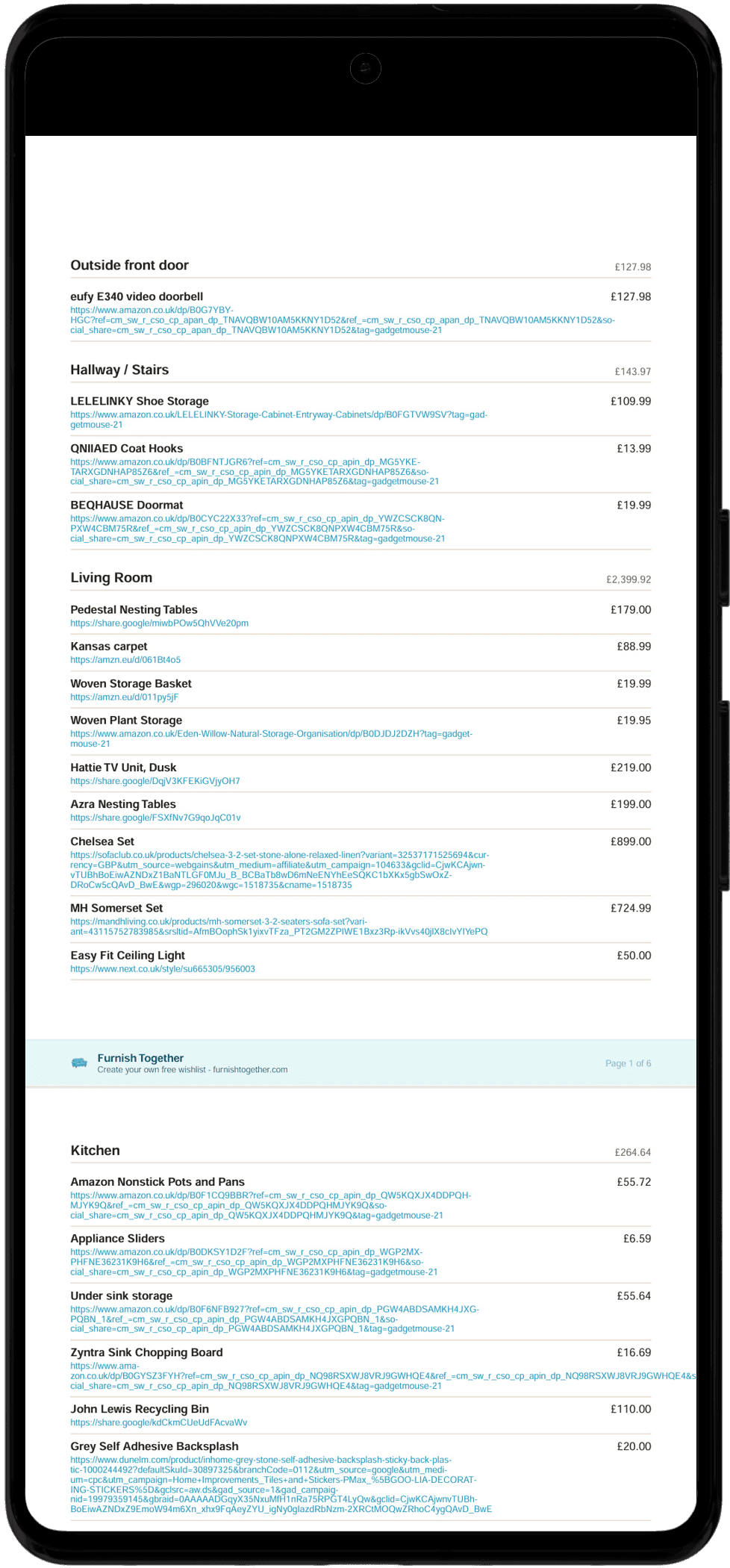
One PDF covers every room in the house.
The same Share panel has a Download as PDF link that turns your list into a printable checklist, grouped by room with each item's name, price and link, so you've got something to take to the till or forward by email without opening the app.
Ordered and Delivered items are flagged right on the page, and each room, plus the list as a whole, shows the same running total you'd see on the board.
Honest about affiliate links
When you paste an Amazon link into the Link field, Furnish Together automatically adds our affiliate code to it, and tells you so right there in the form before you save it, no extra step needed.
If you buy through that link we may earn a small commission, at no extra cost to you. Full details are in our affiliate disclosure.
See it in practice
For more on how couples actually use these day to day, from agreeing on a sofa to keeping a budget from creeping up on you, have a look at the blog.
Questions couples ask us
Yes, every feature on this page is free, with no paid plan: unlimited rooms and items, as many people on a list as you like, and PDF export. Some Amazon links carry our affiliate code, which may earn us a small commission if you buy through them, at no extra cost to you.
No, it runs entirely in your browser. You can pin it to your home screen for a one-tap icon if you want, but that's optional, not a requirement to use any feature here.
Yes. Most furniture browsing happens on a phone, so every feature above, adding items, voting, notes, the settings panel, works the same way on mobile as it does on a laptop.
Put these features to work on your own list.